
· 3 min read
How to resize an image to 20KB for online forms
A step-by-step way to get a photo or signature under 20KB without making it blurry, plus the pixel sizes that fit and the mistakes that get uploads rejected.
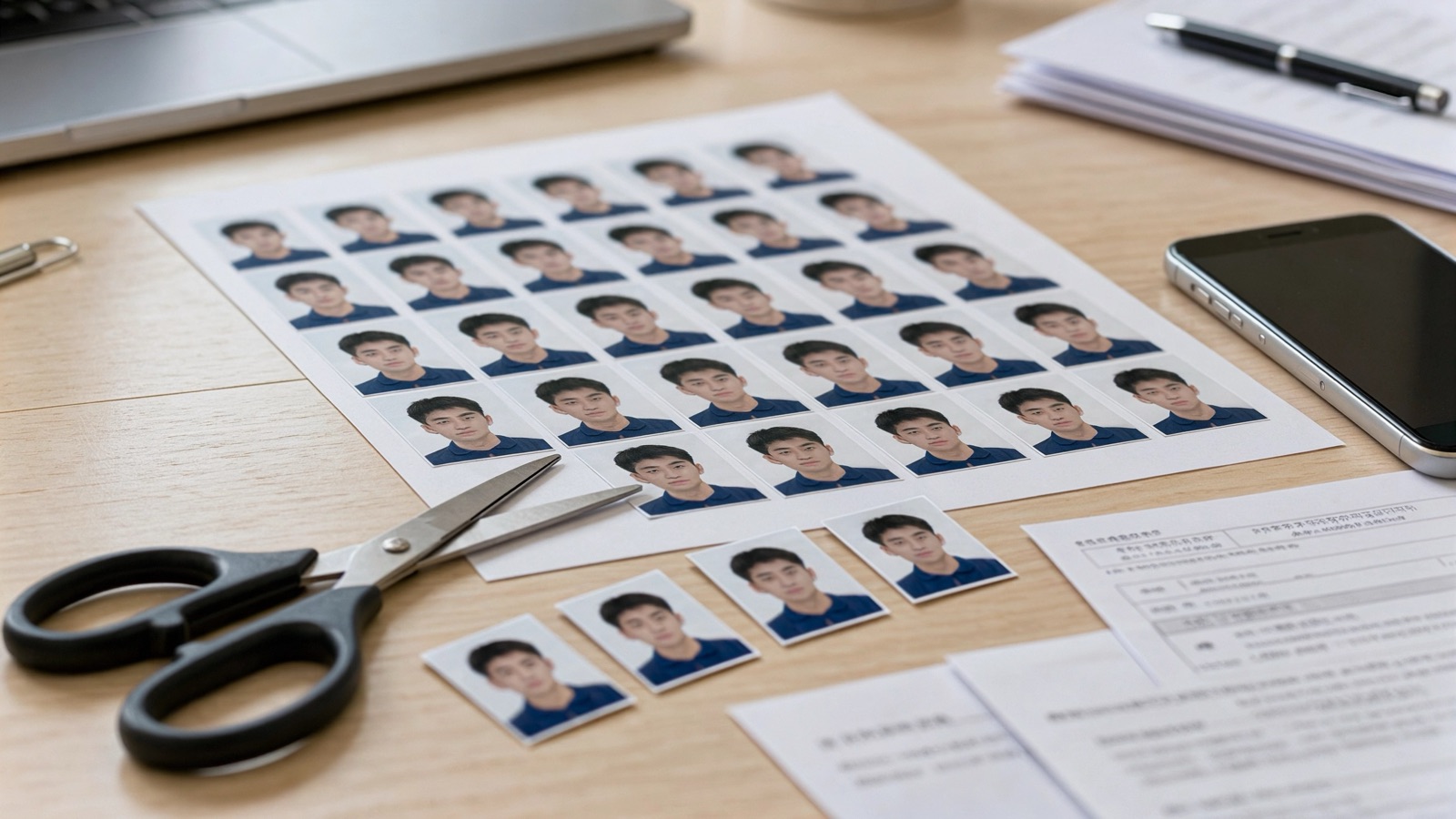
Many application portals, from exam registrations to job and scholarship forms, only accept a photo or signature that is 20KB or smaller. A phone photo is usually 2–5MB, so it has to shrink by more than 99%. Done the wrong way, the result is blurry or the portal still says "file too large". Here is the quick way to get it right the first time.
 Compress to 20 KBNeed a photo or signature under 20 KB? Drop it here and the tool resizes and compresses it to fit the limit.
 Resize imageEnter a width or height in pixels.
The fastest way: use a 20KB resizer
- Open the resize image to 20KB tool.
- Drop your photo or signature onto the page (JPG, PNG and WebP all work).
- The tool reduces the quality and, if needed, the pixel size step by step until the file is at or under 20KB.
- Check the preview, then download the JPG and upload it to the form.
Everything happens inside your browser, so your photo is not uploaded to any server. That matters for ID photos and signatures.
What pixel size fits in 20KB?
File size depends on the number of pixels and on how much detail the picture has. As a rough guide for a JPG:
- Passport-style photo: about 200 × 230 to 300 × 350 pixels usually lands between 15 and 20KB.
- Signature: about 300 × 100 to 400 × 150 pixels on a plain white background is often under 10KB.
- Full-size photo (4000 × 3000): far too big. It needs to be scaled down first, which the tool does for you.
If the form also states a pixel size (for example 200 × 230), resize to those exact dimensions first with the image resizer, then compress to 20KB.
Why your file is still too big
- It is a PNG. PNG is lossless and can't get small with photos. Convert to JPG first; the 20KB tool does this automatically.
- The background is busy. Grass, patterned walls and noise from low light take a lot of data. A plain, evenly lit wall compresses far better.
- The photo is cropped too loosely. Crop to your head and shoulders before compressing so the pixels go where they matter.
How to keep it sharp at 20KB
Shrinking the pixel size is better than crushing the quality. A 250-pixel-wide photo at good quality looks cleaner than a 1000-pixel photo at very low quality, which shows blocky artefacts around the face. Take the photo in daylight facing a window, stand in front of a plain light wall, and avoid digital zoom.
For signatures, sign with a black pen on clean white paper, photograph it straight on in good light, and crop tightly around the ink. Thin, faint lines disappear when files get very small, so press firmly.
Need a slightly different limit?
Forms vary. Some ask for 10–20KB, others 50KB or 100KB. Use the size that matches the instructions:
Compress to 10 KBNeed a photo or signature under 10 KB? Drop it here and the tool resizes and compresses it to fit the limit.Compress to 15 KBNeed a photo or signature under 15 KB? Drop it here and the tool resizes and compresses it to fit the limit.Compress to 25 KBNeed a photo or signature under 25 KB? Drop it here and the tool resizes and compresses it to fit the limit.Compress to 50 KBNeed a photo or signature under 50 KB? Drop it here and the tool resizes and compresses it to fit the limit.Frequently asked questions
Will the tool make my file exactly 20KB?
It makes the file 20KB or less, as close to the limit as it can while keeping the best possible quality. Portals check for a maximum, so slightly under is what you want.
Can I resize to 20KB on my phone?
Yes. The tool runs in mobile browsers on Android and iPhone. Open the page, tap to pick your photo from the gallery, and download the result.
Is my photo uploaded anywhere?
No. The image is processed by your own device, inside the browser tab. Nothing is sent to a server.
The form asks for 20–50KB. Which should I use?
Aim for the upper half of the range, around 40KB, using the compress to 40KB tool. A bit more data gives a clearer photo, and you stay safely inside the limit.